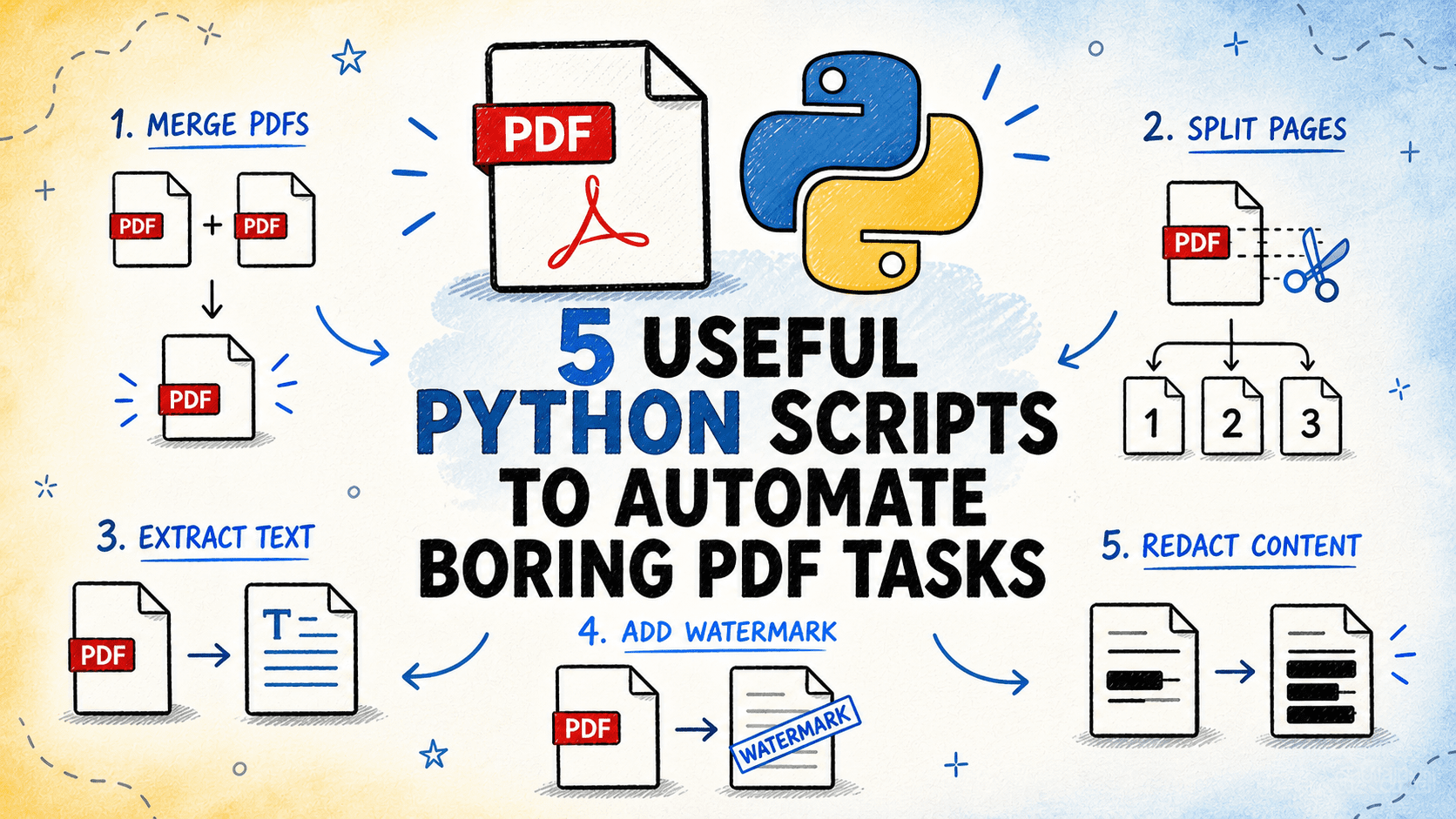
PDFs are everywhere, from invoices and reports to e-books and legal documents. While incredibly useful for sharing information, manually handling common PDF tasks can quickly become a repetitive and time-consuming chore. If you're a developer looking to streamline your workflow or build automation into your applications, Python offers powerful libraries to tackle these "boring" PDF tasks with just a few lines of code. This tutorial will walk you through five essential Python scripts using the pypdf library to automate some of the most common PDF manipulations.
The pypdf library is a free and open-source pure-Python PDF library. It's the actively maintained successor to the popular PyPDF2, offering improved performance, compatibility, and support for modern PDF standards. It's capable of splitting, merging, cropping, and transforming the pages of PDF files. You can also use it to add custom data, viewing options, and passwords to PDF files, as well as retrieve text and metadata.
Before You Start: Setting Up Your Python Environment
To follow along with this tutorial, you'll need Python installed on your system (version 3.6 or later is supported by pypdf). If you don't have Python yet, you can download it from the official Python website.
Once Python is ready, you'll need to install the pypdf library. Open your terminal or command prompt and run the following command:
pip install pypdfIf you plan to work with AES encryption or decryption, you'll need to install extra dependencies. You can do this by running:
pip install pypdf[crypto]pypdf recommends pyca/cryptography or pycryptodome for these tasks.
Now that your environment is set up, let's dive into the scripts!
1. Merging Multiple PDF Files
Combining several PDF documents into a single file is a common requirement. Whether you're compiling reports, combining chapters of a book, or consolidating invoices, this script will save you a lot of manual effort.
Use Case
Imagine you have three separate PDF files: report_part1.pdf, report_part2.pdf, and report_appendix.pdf. You want to merge them into one comprehensive document called final_report.pdf.
The Script
from pypdf import PdfWriter
import os

def merge_pdfs(pdf_files, output_filename):
    """
    Merges multiple PDF files into a single output PDF.

    Args:
        pdf_files (list): A list of paths to the PDF files to merge.
        output_filename (str): The name of the output merged PDF file.
    """
    merger = PdfWriter()

    for pdf in pdf_files:
        if os.path.exists(pdf):
            merger.append(pdf)
            print(f"Appended {pdf}")
        else:
            print(f"Warning: {pdf} not found. Skipping.")

    try:
        with open(output_filename, "wb") as output_file:
            merger.write(output_file)
        print(f"Successfully merged PDFs into {output_filename}")
    except Exception as e:
        print(f"Error merging PDFs: {e}")
    finally:
        merger.close()

if __name__ == "__main__":
    # Create some dummy PDF files for demonstration
    # In a real scenario, these would be your actual PDF files
    # For this example, ensure you have these files in your directory
    # or create empty ones for the script to run without error.
    # For actual content, you'd use a library like ReportLab or manually create PDFs.
    dummy_files = ["report_part1.pdf", "report_part2.pdf", "report_appendix.pdf"]
    for f in dummy_files:
        if not os.path.exists(f):
            # Create a simple dummy PDF (requires ReportLab, or just create empty files)
            # For simplicity, we'll just touch empty files if they don't exist
            # This won't create valid PDFs, but allows the script to run.
            # For a real test, ensure valid PDFs are present.
            try:
                from reportlab.pdfgen import canvas
                c = canvas.Canvas(f)
                c.drawString(100, 750, f"This is a dummy page from {f}")
                c.save()
                print(f"Created dummy file: {f}")
            except ImportError:
                print(f"ReportLab not installed. Please install with 'pip install reportlab' to create dummy PDFs, or provide existing PDFs.")
                with open(f, "w") as temp_f:
                    temp_f.write("Dummy content - replace with real PDF for testing.")


    pdf_list = ["report_part1.pdf", "report_part2.pdf", "report_appendix.pdf"]
    output_merged_pdf = "final_report.pdf"

    merge_pdfs(pdf_list, output_merged_pdf)
How it Works
The PdfWriter class is your main tool for creating new PDF files or modifying existing ones. You create an instance of PdfWriter. Then, for each PDF you want to merge, you use the merger.append() method, passing the file path. The append() method can also take a PdfReader object or specific page ranges if you only want to merge certain pages. Finally, merger.write() saves the combined content to the specified output file.
2. Splitting a PDF File
Sometimes you need to break down a large PDF into smaller, more manageable parts. This could be separating individual pages, chapters, or specific sections.
Use Case
You have a 50-page PDF document, big_report.pdf, and you need to extract pages 10-15 as a separate document, section_A.pdf, and also split every page into its own file (e.g., big_report_page_1.pdf, big_report_page_2.pdf, etc.).
The Script
from pypdf import PdfReader, PdfWriter
import os

def split_pdf_by_range(input_pdf_path, start_page, end_page, output_filename):
    """
    Extracts a range of pages from a PDF and saves them as a new PDF.

    Args:
        input_pdf_path (str): Path to the input PDF file.
        start_page (int): The starting page number (1-indexed).
        end_page (int): The ending page number (inclusive, 1-indexed).
        output_filename (str): The name of the output PDF file.
    """
    if not os.path.exists(input_pdf_path):
        print(f"Error: Input PDF '{input_pdf_path}' not found.")
        return

    try:
        reader = PdfReader(input_pdf_path)
        writer = PdfWriter()

        num_pages = len(reader.pages)
        if not (1 <= start_page <= end_page <= num_pages):
            print(f"Error: Invalid page range. PDF has {num_pages} pages.")
            return

        # pypdf uses 0-indexed pages, so adjust
        for page_num in range(start_page - 1, end_page):
            writer.add_page(reader.pages[page_num])

        with open(output_filename, "wb") as output_file:
            writer.write(output_file)
        print(f"Successfully split pages {start_page}-{end_page} into {output_filename}")

    except Exception as e:
        print(f"Error splitting PDF by range: {e}")

def split_pdf_into_individual_pages(input_pdf_path, output_prefix="page"):
    """
    Splits a PDF into individual pages, saving each as a new PDF file.

    Args:
        input_pdf_path (str): Path to the input PDF file.
        output_prefix (str): Prefix for the output filenames (e.g., "report_page_").
    """
    if not os.path.exists(input_pdf_path):
        print(f"Error: Input PDF '{input_pdf_path}' not found.")
        return

    try:
        reader = PdfReader(input_pdf_path)
        num_pages = len(reader.pages)

        for i in range(num_pages):
            writer = PdfWriter()
            writer.add_page(reader.pages[i])
            output_filename = f"{output_prefix}_{i+1}.pdf"
            with open(output_filename, "wb") as output_file:
                writer.write(output_file)
            print(f"Created {output_filename}")
        print(f"Successfully split '{input_pdf_path}' into {num_pages} individual pages.")

    except Exception as e:
        print(f"Error splitting PDF into individual pages: {e}")

if __name__ == "__main__":
    # Create a dummy multi-page PDF for demonstration
    dummy_input_pdf = "multi_page_document.pdf"
    if not os.path.exists(dummy_input_pdf):
        try:
            from reportlab.pdfgen import canvas
            c = canvas.Canvas(dummy_input_pdf)
            for i in range(1, 11): # Create a 10-page dummy PDF
                c.drawString(100, 750, f"This is Page {i}")
                if i < 10:
                    c.showPage() # Start a new page
            c.save()
            print(f"Created dummy multi-page PDF: {dummy_input_pdf}")
        except ImportError:
            print(f"ReportLab not installed. Please install with 'pip install reportlab' to create dummy PDFs, or provide an existing multi-page PDF.")
            with open(dummy_input_pdf, "w") as temp_f:
                temp_f.write("Dummy content - replace with real PDF for testing.")

    # Example 1: Split a specific range of pages
    split_pdf_by_range(dummy_input_pdf, 2, 5, "extracted_pages_2_to_5.pdf")

    # Example 2: Split into individual pages
    split_pdf_into_individual_pages(dummy_input_pdf, "document_page")
How it Works
The process involves reading the input PDF using PdfReader. You then iterate through its pages attribute, which is a list-like object containing PageObject instances. For each page (or range of pages) you want to extract, you create a new PdfWriter, add the desired PageObject using writer.add_page(), and then save it to a new file.
3. Extracting Text from a PDF
Extracting text from PDFs is crucial for data analysis, search indexing, or converting documents into editable formats. While PDFs are designed for visual presentation, pypdf can often pull out the underlying text.
Use Case
You have a PDF document, annual_report.pdf, and you need to extract all the text content to analyze it for keywords or convert it into a plain text file.
The Script
from pypdf import PdfReader
import os

def extract_text_from_pdf(input_pdf_path, output_text_path=None):
    """
    Extracts all text from a PDF file.

    Args:
        input_pdf_path (str): Path to the input PDF file.
        output_text_path (str, optional): Path to save the extracted text.
                                         If None, prints to console.
    Returns:
        str: The extracted text.
    """
    if not os.path.exists(input_pdf_path):
        print(f"Error: Input PDF '{input_pdf_path}' not found.")
        return ""

    extracted_text = ""
    try:
        reader = PdfReader(input_pdf_path)
        num_pages = len(reader.pages)

        for i in range(num_pages):
            page = reader.pages[i]
            text = page.extract_text()
            if text: # Only append if text was actually extracted
                extracted_text += text + "\n" # Add newline for readability between pages

        if output_text_path:
            with open(output_text_path, "w", encoding="utf-8") as output_file:
                output_file.write(extracted_text)
            print(f"Text extracted from '{input_pdf_path}' and saved to '{output_text_path}'")
        else:
            print(f"--- Extracted Text from '{input_pdf_path}' ---")
            print(extracted_text)
            print("-------------------------------------------------")

        return extracted_text

    except Exception as e:
        print(f"Error extracting text: {e}")
        return ""

if __name__ == "__main__":
    # Create a dummy PDF for text extraction
    dummy_text_pdf = "sample_document_with_text.pdf"
    if not os.path.exists(dummy_text_pdf):
        try:
            from reportlab.pdfgen import canvas
            c = canvas.Canvas(dummy_text_pdf)
            c.drawString(50, 750, "This is the first line of text on page 1.")
            c.drawString(50, 730, "And a second line with some more words.")
            c.showPage()
            c.drawString(50, 750, "This is page 2, with different content.")
            c.drawString(50, 730, "Python automation is incredibly useful!")
            c.save()
            print(f"Created dummy text PDF: {dummy_text_pdf}")
        except ImportError:
            print(f"ReportLab not installed. Please install with 'pip install reportlab' to create dummy PDFs, or provide an existing PDF with text.")
            with open(dummy_text_pdf, "w") as temp_f:
                temp_f.write("Dummy content - replace with real PDF for testing.")


    input_pdf = "sample_document_with_text.pdf"
    output_txt = "extracted_text.txt"

    # Extract and print to console
    extract_text_from_pdf(input_pdf)

    # Extract and save to a file
    extract_text_from_pdf(input_pdf, output_txt)
How it Works
After creating a PdfReader object from your PDF file, you can access individual pages. Each PageObject has an extract_text() method. This method attempts to pull out all the text content from that specific page. Keep in mind that text extraction from PDFs can sometimes be imperfect due to the complex nature of PDF formatting, especially with scanned documents or unusual layouts.
4. Rotating PDF Pages
Incorrect page orientation is a common annoyance. Whether a document was scanned sideways or a report needs adjustment, rotating pages programmatically is a quick fix.
Use Case
You have a PDF called scanned_document.pdf where all pages are landscape, but they should be portrait (rotated 90 degrees clockwise).
The Script
from pypdf import PdfReader, PdfWriter
import os

def rotate_pdf_pages(input_pdf_path, output_filename, rotation_angle=90):
    """
    Rotates all pages in a PDF by a specified angle.

    Args:
        input_pdf_path (str): Path to the input PDF file.
        output_filename (str): The name of the output rotated PDF file.
        rotation_angle (int): The angle to rotate pages clockwise (e.g., 90, 180, 270).
                              Must be a multiple of 90.
    """
    if not os.path.exists(input_pdf_path):
        print(f"Error: Input PDF '{input_pdf_path}' not found.")
        return

    if rotation_angle % 90 != 0:
        print("Error: Rotation angle must be a multiple of 90 degrees.")
        return

    try:
        reader = PdfReader(input_pdf_path)
        writer = PdfWriter()

        for page in reader.pages:
            # Rotate clockwise. pypdf's rotate() method takes care of rotation.
            page.rotate(rotation_angle) #
            writer.add_page(page)

        with open(output_filename, "wb") as output_file:
            writer.write(output_file)
        print(f"Successfully rotated all pages in '{input_pdf_path}' by {rotation_angle} degrees into '{output_filename}'")

    except Exception as e:
        print(f"Error rotating PDF: {e}")

if __name__ == "__main__":
    # Create a dummy PDF for rotation demonstration
    dummy_rotate_pdf = "landscape_document.pdf"
    if not os.path.exists(dummy_rotate_pdf):
        try:
            from reportlab.pdfgen import canvas
            from reportlab.lib.pagesizes import landscape, letter
            c = canvas.Canvas(dummy_rotate_pdf, pagesize=landscape(letter))
            c.drawString(100, 500, "This text is in landscape orientation.")
            c.drawString(100, 480, "It needs to be rotated to portrait.")
            c.save()
            print(f"Created dummy landscape PDF: {dummy_rotate_pdf}")
        except ImportError:
            print(f"ReportLab not installed. Please install with 'pip install reportlab' to create dummy PDFs, or provide an existing PDF.")
            with open(dummy_rotate_pdf, "w") as temp_f:
                temp_f.write("Dummy content - replace with real PDF for testing.")

    input_pdf = "landscape_document.pdf"
    output_rotated_pdf = "rotated_document.pdf"

    rotate_pdf_pages(input_pdf, output_rotated_pdf, 90)
How it Works
Similar to splitting, you read the PDF with PdfReader and get its pages. Each PageObject has a rotate() method (or `rotateClockwise` in older PyPDF2 versions) that allows you to rotate the page content by multiples of 90 degrees. After rotating each page, you add it to a PdfWriter object and then save the new PDF.
5. Encrypting and Decrypting PDF Files
Security is paramount for sensitive documents. Adding a password to a PDF can restrict access, while decrypting allows authorized users to work with the content freely.
Use Case
You have a confidential document, confidential_info.pdf, that needs to be password-protected for sharing. Later, you receive an encrypted PDF, encrypted_report.pdf, and need to decrypt it to access its contents.
The Script
from pypdf import PdfReader, PdfWriter
import os

def encrypt_pdf(input_pdf_path, output_filename, password, algorithm="AES-256-R5"):
    """
    Encrypts a PDF file with a password.

    Args:
        input_pdf_path (str): Path to the input PDF file.
        output_filename (str): The name of the output encrypted PDF file.
        password (str): The password to protect the PDF.
        algorithm (str): Encryption algorithm (e.g., "AES-256-R5").
                         Requires 'pypdf[crypto]' installation for AES.
                         RC4 is default if not specified.
    """
    if not os.path.exists(input_pdf_path):
        print(f"Error: Input PDF '{input_pdf_path}' not found.")
        return

    try:
        reader = PdfReader(input_pdf_path)
        writer = PdfWriter()

        # Add all pages from the original PDF to the writer
        for page in reader.pages:
            writer.add_page(page)

        # Encrypt the PDF
        writer.encrypt(password, algorithm=algorithm) #

        with open(output_filename, "wb") as output_file:
            writer.write(output_file)
        print(f"Successfully encrypted '{input_pdf_path}' into '{output_filename}' with password.")

    except Exception as e:
        print(f"Error encrypting PDF: {e}")

def decrypt_pdf(input_pdf_path, output_filename, password):
    """
    Decrypts a password-protected PDF file.

    Args:
        input_pdf_path (str): Path to the input encrypted PDF file.
        output_filename (str): The name of the output decrypted PDF file.
        password (str): The password to decrypt the PDF.
    """
    if not os.path.exists(input_pdf_path):
        print(f"Error: Input PDF '{input_pdf_path}' not found.")
        return

    try:
        reader = PdfReader(input_pdf_path)

        if reader.is_encrypted: #
            if reader.decrypt(password) == 1: #
                writer = PdfWriter()
                for page in reader.pages:
                    writer.add_page(page)

                with open(output_filename, "wb") as output_file:
                    writer.write(output_file)
                print(f"Successfully decrypted '{input_pdf_path}' into '{output_filename}'.")
            else:
                print(f"Error: Incorrect password for '{input_pdf_path}'.")
        else:
            print(f"'{input_pdf_path}' is not encrypted.")

    except Exception as e:
        print(f"Error decrypting PDF: {e}")

if __name__ == "__main__":
    # Create a dummy PDF for encryption demonstration
    dummy_confidential_pdf = "confidential_document.pdf"
    if not os.path.exists(dummy_confidential_pdf):
        try:
            from reportlab.pdfgen import canvas
            c = canvas.Canvas(dummy_confidential_pdf)
            c.drawString(100, 750, "This is highly confidential information.")
            c.drawString(100, 730, "Do not share without authorization.")
            c.save()
            print(f"Created dummy confidential PDF: {dummy_confidential_pdf}")
        except ImportError:
            print(f"ReportLab not installed. Please install with 'pip install reportlab' to create dummy PDFs, or provide an existing PDF.")
            with open(dummy_confidential_pdf, "w") as temp_f:
                temp_f.write("Dummy content - replace with real PDF for testing.")

    # Encryption example
    input_pdf_to_encrypt = "confidential_document.pdf"
    output_encrypted_pdf = "confidential_document_encrypted.pdf"
    secret_password = "mysecretpassword123"

    encrypt_pdf(input_pdf_to_encrypt, output_encrypted_pdf, secret_password)

    # Decryption example
    # Assuming 'confidential_document_encrypted.pdf' was created successfully
    output_decrypted_pdf = "confidential_document_decrypted.pdf"

    # Try decrypting with correct password
    decrypt_pdf(output_encrypted_pdf, output_decrypted_pdf, secret_password)

    # Try decrypting with incorrect password (will fail)
    print("\nAttempting decryption with an incorrect password:")
    decrypt_pdf(output_encrypted_pdf, "confidential_document_failed_decrypt.pdf", "wrongpassword")
How it Works
To encrypt a PDF, you first read the pages from the original document into a PdfWriter object. Then, you call the writer.encrypt() method, providing the password. pypdf supports various encryption algorithms, including modern AES-256-R5, though RC4 is used by default for compatibility if not specified. For decryption, you create a PdfReader object for the encrypted file. You can check if a PDF is encrypted using reader.is_encrypted. Then, you call reader.decrypt() with the correct password. If successful, you can then read and write the decrypted pages to a new, unencrypted PDF.
Conclusion
Automating PDF tasks with Python and the pypdf library can drastically improve your efficiency, whether you're a developer handling large volumes of documents or just looking to simplify everyday chores. The scripts above provide a solid foundation for merging, splitting, extracting text, rotating pages, and securing your PDFs. The pypdf library is actively maintained and offers a robust, pure-Python solution for these challenges.
With these basic operations mastered, you can explore more advanced features of pypdf, such as adding watermarks, handling annotations, or even working with PDF forms. The possibilities for automating your document workflows are vast!